1~1 min
Download & create account
- Install TarkTalk from the App Store.
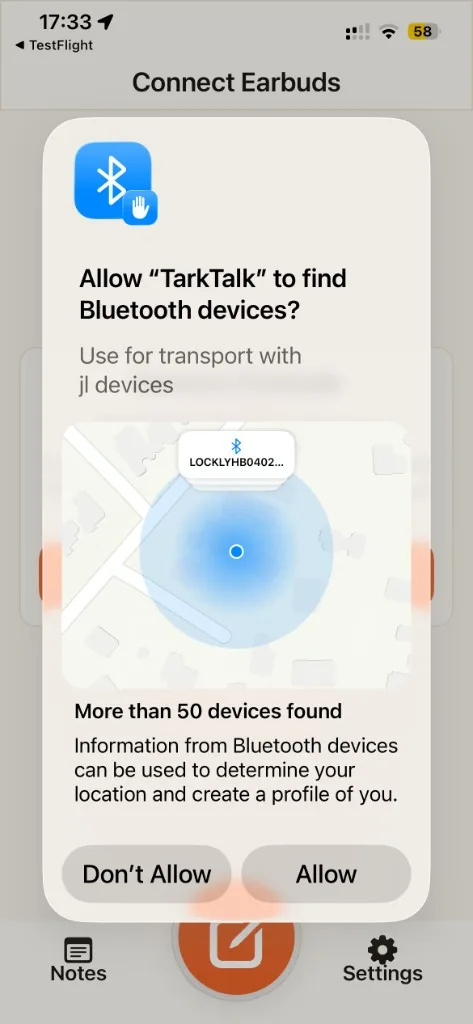
- When prompted, tap Allow for Bluetooth and Notifications — the earbuds need Bluetooth to work.
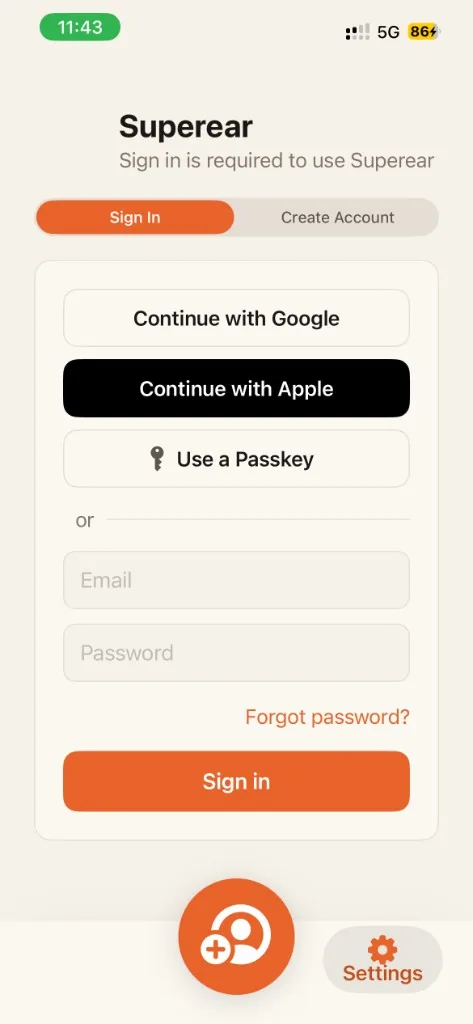
- Tap the orange button, choose Create Account, and sign up with email, Google or Apple.
- Signed up with email? Open the confirmation email we send and tap the link to verify your email address.
- Return to the app and sign in with your new account.
2~1 min
Pair your earbuds
- Put both earbuds in your ears.
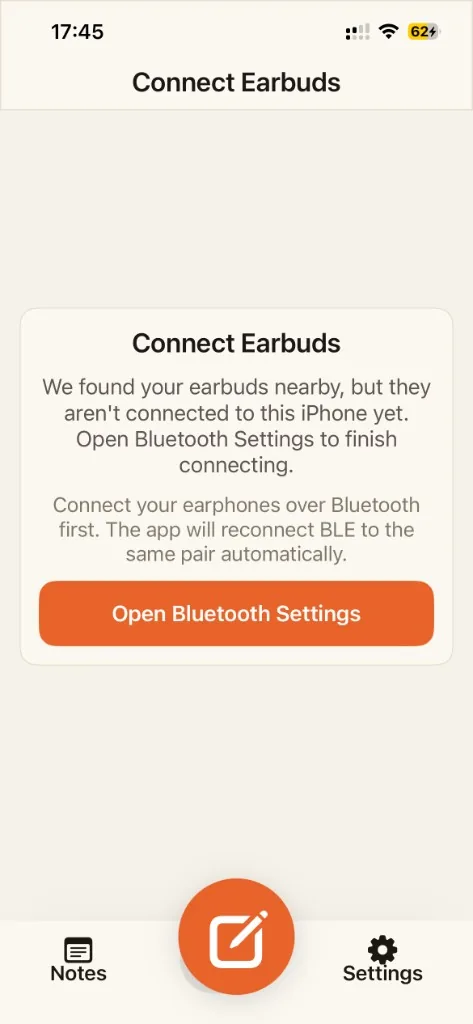
- In the app, tap Open Bluetooth Settings.
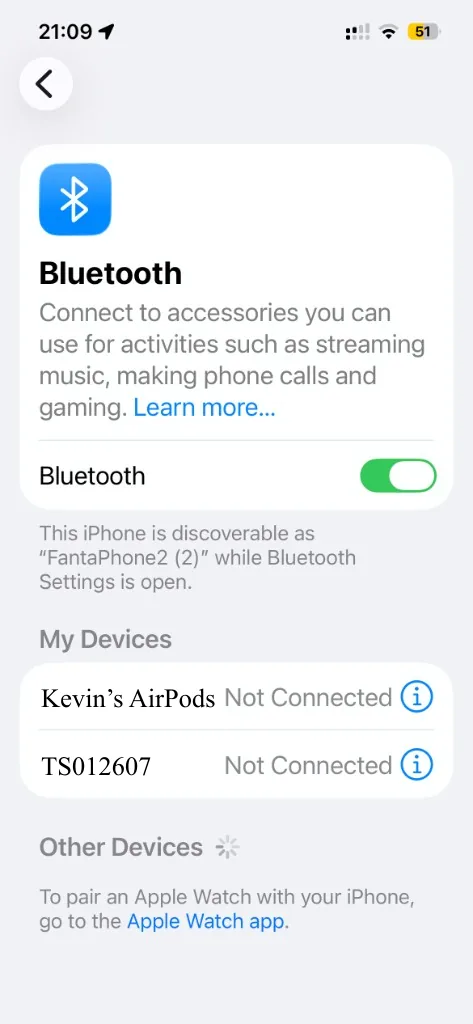
- Turn Bluetooth on, wait for Superear TS012607 to appear, then tap it to connect.
- The buds beep “connected” and show as Connected. That's the hard part done.
3~1 min
Make your first capture — you're set
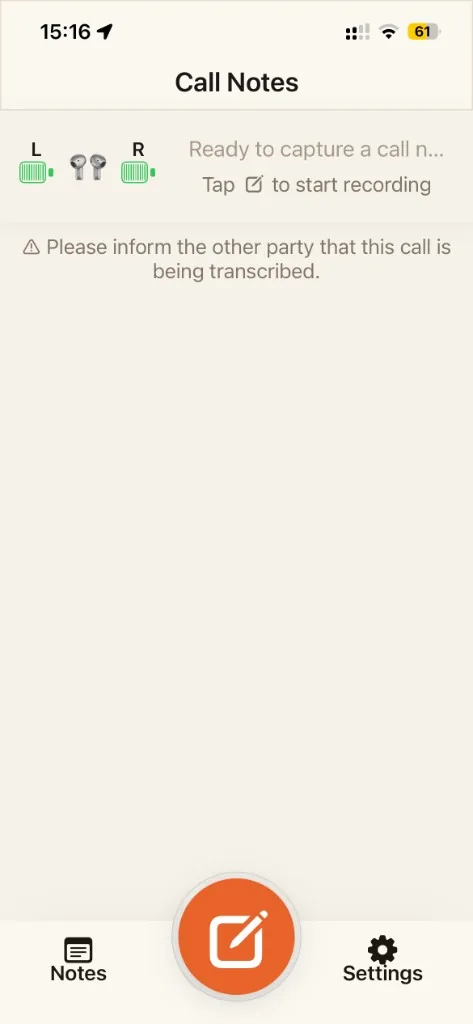
- Back in the app, tap the big orange capture button.
- Talk to your earbuds — the live transcript appears and the waveform moves as you speak.
- That's it. From now on TarkTalk captures and notes what you hear through your Superear Buds, automatically.
Good practice: let the other party know the call is being transcribed.